

For the month of March, I’m challenging myself to write a weekly “Listicle” style article for the different communities and audiences that make up the TDAA readership. No matter how technical this blog veers, it is and always has been my way of writing love letters to social movement organizers. This is my core motivation for learning data/tech and for writing at all! So my first post is dedicated to you, and chock full of easy things you can do right away to get spreadsheets on your side 🙂
Freeze! (everybody clap your hands!)
When I’m presented with a long spreadsheet (any spreadsheet that requires scrolling), one of the first things I do is “freeze” the top row, and sometimes the first column. Why? This means that when I scroll, I can still see the column names, which is clutch when I’m still sorting through donation information at 2 am. It’s an easy change and it yields great benefits! How? Simply navigate to the View tab in the menu bar and use the drop down to select your preferences. Brrrr – it’s cold in here!


One fish, two fish, red fish, blue spreadsheet
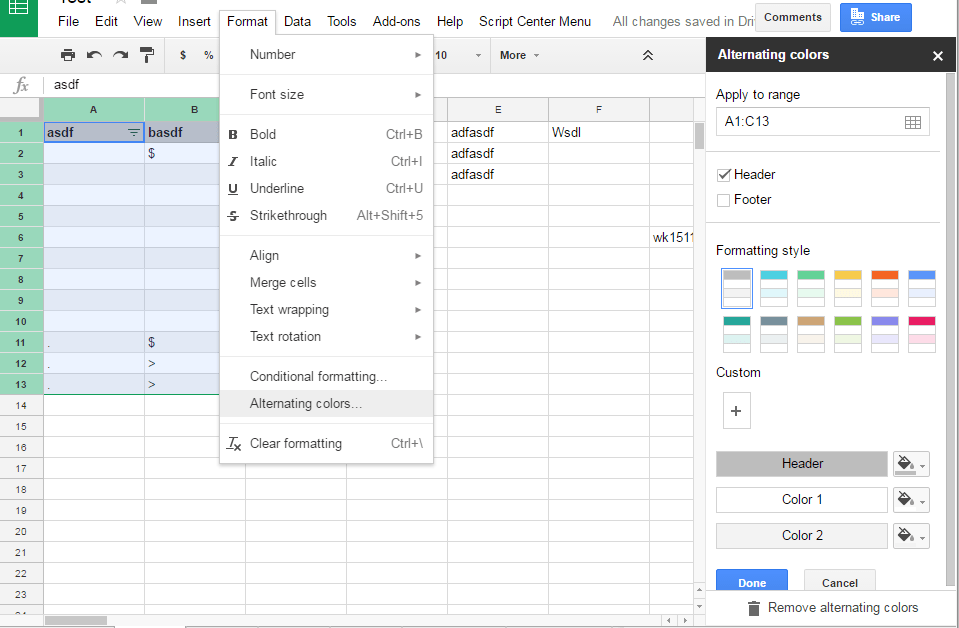
Google Sheets has a feature called “Alternating Colors” which applies a pleasant two-tone color palette of your choice. Why? This makes it easier for your eye to track a row across the screen, and as an added bonus, can make a slap-dash spreadsheet appear even more profesh! How? Simply select the rows of data that should be colorful and then use the menu to apply the color scheme.

Filter feeder
Did you know that the basking shark, a passive filter feeder, filters up to 2,000 tons of water per hour? WOAH!
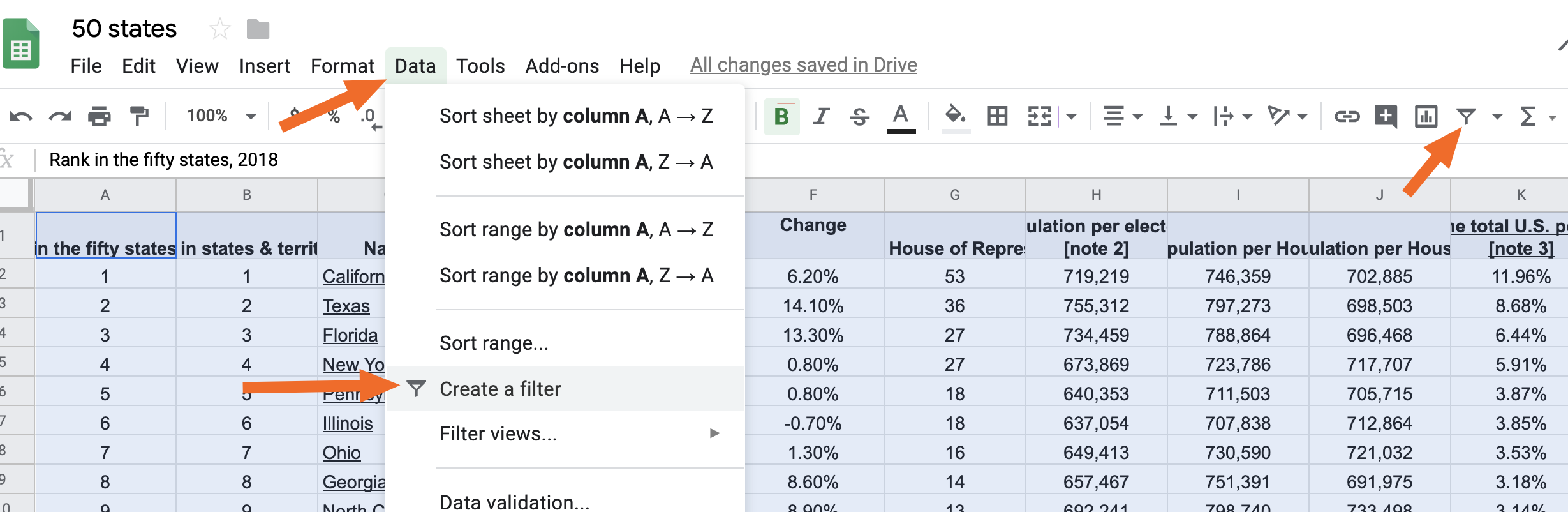
I have some good news for you. Your Google Sheets can filter up to 2,000+ rows of data in approximately 1 second! All you need to do is turn on the filter feature, one of Google Sheets’ best kept secrets. Filters are one of the most powerful tools in your toolbox for finding the right information at the right time – however, for them to be as effective as possible, it’s helpful to make sure that you have some degree of standardization in your data values. If not, you can still use Filters to find discrepancies and resolve them! Why? Filters let you sort your data or use criteria to see certain rows at a time. How? Simply select the data that you want to be able to filter and then click the “funnel” icon in the toolbar. Alternatively, you can use the “Create a filter” option in the Data menu tab. Once you have filters “turned on,” you can use a drop down menu to select the data that you need at any given time. Just make sure that you turn all of your filters “off” when you are done, so you don’t confuse other Spreadsheet Viewers! Ready to kick things up a notch? Try Filter Views!

Email me, maybe?
In the Before Times, I remember being at organizing meetings in a café where we would sit around and joke about “who was going to create the Google Doc” because sometimes it seems like half of organizing is making new docs for planning the next event. (We all know that’s a bit reductive, but we can make fun of ourselves, right?). Sending emails and tracking responses is another mega organizing task – and spreadsheets can HELP!
Google Sheets has all kinds of powerful features especially for email – which can make life a lot easier for busy organizers. This is one of the core advantages of making spreadsheets in Google Drive rather than Excel (besides, ya know, being free and being in the Cloud). Let’s explore a few of these features, so that you can pull them out of your pocket when duty calls.
- If you have a column of email addresses, how can you tell if some are missing email syntax (like @gmail.com) BEFORE you get an email bounceback error? There’s a formula for that! Check out the “Is Email” formula, which uses standard email syntax. This trick doesn’t check if an email is deliverable (ie… if it actually exists) but it gets you a lot closer by making sure that the address conforms to email conventions.
- Do you need to verify if an email address truly exists? There are Google Sheets add-ons for that, too! This is especially helpful if you have a list of petition signatures but you aren’t sure if they are truly deliverable email addresses. There are lot of different services for this, but this one is relatively affordable, Google Sheets compatible, and easy to use.
- Do you need to send emails based on a list in Google Sheets? There are *so* many options for this, I could write a separate blog post. (Should I? Leave me a comment if yes!). Yet Another Mail Merge (YAMM) is my go-to for sending quick, personalized emails based on a list a Google Spreadsheet. It’s based on a Freemium model, and the free tier covers 50 emails per person per day, which is usually not a barrier for me. Their documentation is great and I have found the platform easy to use! Another (paid) application for sending mail merge emails is GMass. I haven’t used it yet, but I really like what I’ve seen from watching videos!


Dear Spreadsheet Whisperer
One of my favorite blog shticks is writing to you all through the Dear Spreadsheet Whisperer advice column! Do you have questions about spreadsheet strategy, broken formula fields, Google Forms tricks and tips, or general spreadsheet-induced burn out? I GOT YOU! You can drop me a line any time – I usually write back right away and I loooooove to hear from you! Check out some of my favorite DSW posts here: